Google Maps has been available for more than 10 years now, and since its launch, a huge swatch of features and functions have been added to the service. Here are some great tips and tricks for getting more out of Google’s mapping service.
|
If you don't want to purchase Microsoft Excel there are a number of free alternatives available. My favorite option is Google Sheets. All you need to do is set up a Gmail or Google account. You can also import files previously used with Excel and it's easy to view, convert, and edit them.
 LINK to original article.
Bob McConnell, a retired engineer, set up a new wireless router in his home this year to get faster Internet speeds. Instead, he got the opposite, with his iPad often getting no wireless connection in his bedroom. For days, he tinkered with the router’s settings, but couldn’t figure out a fix. “It was totally ruining my life,” said Mr. McConnell, who lives in a condominium building in Kirkland, Wash. “Things would work, and then the next morning they wouldn’t work again.” What Mr. McConnell experienced is a situation we call “Wi-Fi headache,” and it’s an ailment that many can relate to. The condition is rooted in the networking devices called routers that people install in their homes for Wi-Fi connectivity. Most routers are difficult to configure for anyone who doesn’t work in an information technology department. Jargony tech terms like 802.11 or dual-band add to the confusion when people upgrade a router or try to decide which one to pick. The bottom line: People with devices both new and old will see an improvement by upgrading to a recent router that supports the latest Wi-Fi standards. But they should be wary of buying a cheap router that isn’t any good, or spending too much on one that is too complex for their needs. Why Your Wi-Fi Stinks Wi-Fi headaches start with how the technology has evolved. For years, router makers like Netgear, Linksys and Cisco focused on making Wi-Fi technology transmit data at higher speeds and over longer distances. That did little to prepare people for the explosion of Internet-connected mobile devices. In buildings crowded with smartphones, computers, smart TVs and tablets, the devices’ signals are now fighting for room on the same radio channels. And routers are spewing out energy for longer distances that may be bumping into neighbors’ signals. “The router manufacturers are kind of brain-dead,” said Dave Fraser, the chief executive of Devicescape, which develops technology for making public Wi-Fi networks usable for mobile phone service. “All they were thinking about was supporting people with laptops in their homes and commercial environments. All of a sudden Wi-Fi is in everything and everywhere, and we’re moving around our homes much more.” Router manufacturers have more recently improved Wi-Fi technology with mobile devices in mind, said Mr. Fraser. New routers often include smarter antennas that do a better job of assembling signals and beaming energy toward devices that are moving around. Some features inside newer routers also help reduce signal interference. Newer routers typically can transmit data over two radio frequencies — 2.4 GHz and 5 GHz — and give you the option to split them up into two separate Wi-Fi networks. In general, the 2.4 GHz band transmits data farther and is more crowded because many types of devices, like cordless phones and microwaves, use that frequency. The 5 GHz band is less congested but typically travels a shorter distance. Consumer behavior is also to blame for Wi-Fi headaches. People may wait years before buying a new router, so their devices might be more up-to-date than their infrastructure. An outdated router becomes a bottleneck that hinders the speeds of web downloads and file transfers between connected devices. Some people never upgrade routers, especially those who still use the router that their Internet service provider lent them years ago. Those routers, which often double as modems, are often slow and short-ranged. That means it is time to buy a newer, faster router. Test Results The Wirecutter performed a battery of tests on two top-performing routers with six devices, and the results were unmistakable: If your current router is at least three years old, there is no reason not to upgrade to a new router. Not only can a newer router improve the speed and range for users, the routers typically have upgraded internal components and strong external antennas. Many also support the latest Wi-Fi standard — 802.11ac — which has top speeds that are nearly three times faster than the previous standard, 802.11n, for the fastest wireless devices you can buy today. Many smartphones, tablets and laptops released since 2013 support 802.11ac. But even older devices that support only the previous standard, 802.11n, can enjoy faster speeds at long range with a newer 802.11ac router. Buying Advice The best router for most people is the Archer C7 ($100). It’s a dual-band 802.11ac router, meaning it can run both 2.4GHz and 5 GHz Wi-Fi networks, and it supports the fastest Wi-Fi speeds of every wireless device you can buy, including the MacBook Pro, the Samsung Galaxy S6 or the brand-new iPhone 6s. The Archer C7 is faster over longer distances than most routers that cost $150 or more, and it’s the best value of the more than two dozen routers The Wirecutter tested in the last two years. The Archer C7 isn’t for everyone. So The Wirecutter also combed through test results and picked some routers for different living situations, such as small apartments or homes where people primarily use Apple devices. Generally, we recommend you upgrade to a new router every three to four years. That accounts for how often people typically upgrade devices like smartphones (every two years) and computers (every three to four years). Yet whether your smartphones, computers and tablets are one, two or five years old, now is a good time to buy a new router if you haven’t in the last three years. Newer devices are probably using the 802.11ac standard, so you will get the fastest speeds at long distances with an 802.11ac router. If you hoard old devices, you will also get faster speeds and greater range. These benefits will be especially clear if you stay on a 5 GHz Wi-Fi network for as long as you can. One caveat: If you use a slower Internet service like DSL, you can probably hold on to a router for longer than three years. A newer router can still be useful because of the improved wireless range, but you won’t experience a big difference in speeds. If your house is so large that a new router won’t be able to cover every inch with a great Wi-Fi signal, you could install a Wi-Fi extender, which enhances an existing Wi-Fi connection to increase coverage. Powerline networking, which converts a house’s electrical wiring into a wired Internet connection, is another option, but you’ll have to check if your home supports it. As for Mr. McConnell, the retired engineer eventually solved his Wi-Fi headache by setting up his devices to stay on the 5 GHz radio band. To get a Wi-Fi signal to his iPad in the bedroom, he also set up an extender. Now everything is smooth sailing, he said. “I’ve got my life back,” he said. 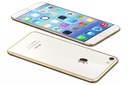 This is an iPhone 6 review by Mark Hurst of Creative Good that I thought was worth reposting here. It's definitely worth reading if you're thinking about upgrading your current iPhone, especially if you have the iPhone 5s.
The iPhone 6: a basic customer experience review I recently bought an iPhone 6. As I travel around the country giving talks on my book Customers Included, I'm asked quite often about my opinion about the user experience. People everywhere, it seems, are deciding whether to upgrade to this new, larger device. My recommendation: don't buy an iPhone 6. While it's a good device, the iPhone 5 is still a better choice. (I wouldn't have bought the 6, except that Good Todo needed a revised iPhone app to accommodate the larger screen. The new app is great, by the way.) Of all of the reviews I've read of the iPhone 6, I haven't seen much about thebasics of the user experience. Most reviews cover the latest features that will excite gadget-happy early adopters. But from my conversations with customers around the country, many iPhone users are making the buying decision based on the basics. Thus, here's my review of the iPhone 6's basic customer experience: • The iPhone 6 is too big. It's an awkward fit into most pockets, if it fits at all. And the larger screen slows down typing, since it requires a noticeably larger range of motion from the thumb. The iPhone 5's size was ideal, except for users with especially large hands. This raises a question about mobile portability: how big can an iPhone get before it's no longer a handheld device? (As for the even bigger iPhone 6+ ... it's so large that it's better considered as an iPad replacement, not a phone.) • The iPhone 6 is also easier to drop. The rounded edges (like the old iPhone 1 design), combined with the thinner shape, make it much easier to fumble... that is, unless you'd like to buy a crash guard, which makes the phone even bigger (see above bullet). You also can't sit the iPhone 6 on its side, as you can with the iPhone 5. • Finally, it's not quite as elegant as previous iPhones. I had the iPhone 6 on my desk while tapping out a text message, and kept hearing a clacking sound coming from the desk. At first I thought the desk wasn't level, but no: it was the iPhone itself. The iPhone 6 can't lie flat, due to a protruding camera lens. I'm sure camera techies could tell me all the reasons why the new camera is superior - but an uneven (and large) chassis seems out of step for the historically elegant iPhone line. Other details are also a little off-kilter, like the hollow "ping" that reverberates through the device when plugging in a headset. The iPhone 5 felt more solid, more elegant. Now, I understand there are strong market-based reasons for these design decisions: first and foremost, the increased competition from ever-larger Android devices. So a short-term strategy of catch-up, by making larger iPhones, might temporarily make sense. (For now, it seems to be working, given the strong iPhone 6 sales so far.) The problem is that a catch-up strategy follows, rather than leads, the market. Making phones bigger and bigger just is not a sustainable strategy - how much larger can phones get? (Will the pizza-sized iPhone 7 need carry straps, like a backpack? Will the full-length-mirror-sized iPhone 8 need wheels, like a rolling suitcase? etc.) By reacting to competitors, Apple risks losing sight of what customers want in the long run. This is exactly where cell phone manufacturers were in 2007, when the iPhone arrived: cell manufacturers all trying to one-up each other with the latest and greatest features and specs, while ignoring users' key unmet needs. I've been an iPhone user from the beginning, and the iPhone 6 is the first time my experience has downgraded from the previous model. Seeing how strong its sales are right now, maybe this is just my own experience. But it's possible to thrive in the short term while losing sight of customers in the long term. (Anyone remember Nokia?) I saw one of these cable organizers earlier this week when I visited a client for a home appointment. It looked pretty good so I ordered one on Amazon for $30 yesterday. Our designated cell phone charging station is in our kitchen where there is a big mess of wires from four separate chargers. I am hoping that this box eliminates the clutter and keeps all the cables nice and neatly organized. BTW - There is a larger version of the Blue Lounge Cable Box available but I ordered the Mini or smaller version that comes with a small 6 outlet power strip inside. If you are in need of a little cable organization near your computer setup or charging station this thing may do the trick. The device can be purchased from BlueLounge directly or from Amazon. This video has some tips on how to work with an iPad Home button that isn't functioning properly. The good news is that the iPad gives us the ability to emulate the Home button using a five finger swipe or by enabling Assistive Touch (directions below). Simulate the Home button To navigate without the home button, you will want to enable Assistive Touch. This can be done by going to Settings > General > Accessibility, and scroll until you see AssistiveTouch, then enable it.  Here are some tips to help improve your battery life on your iPhone or iPad running iOS 7. The best tip by far is #1 - Turning off the Parallax effect.
1. Turn Off Parallax Remember how people are getting motion sickness from iOS 7? This is one of the reasons why. The aspect of iOS 7 that makes everything look a little bit 3D and makes your background move around behind your apps. It also drains your battery. To turn it off, go to Settings, General, then Accessibility, then Reduce Motion. Turn Reduce Motion on to stop the parallax effect. 2. Change Your Spotlight Settings With iOS 7, you can now search for anything on your iPhone using Spotlight. All you have to do is pull down on your Home screen and you can search pretty much every part of your phone, from notes to music, to mail. It's convenient, but it also takes a lot of battery power to index all of your stuff. You can change exactly what Spotlight looks in when you use it for search by going to Settings, General then Spotlight search. From there you can choose what you want to index and search. 3. Turn Off AirDrop When Possible iOS 7 now allows you to quickly and easily share files with your friends' iPhones. This is only available for iPhone 5 and newer. It's a great new feature, but it doesn't need to be on when you're not using it. To turn it off, go to your control center by pushing up from the bottom of any screen. From there you can disable AirDrop until you want to use it. 4. Turn Your Brightness Down This is a classic way to save battery life, and it's been made even easier with iOS 7. Instead of going through Settings to get to your brightness, you can change your screen's brightness from the Control Center. Just pull up from the bottom of any screen. 5. Turn Off Bluetooth And WiFi This is another old one, but remember that if you're moving around and not using your WiFi or Bluetooth, these things are using up your battery. You can keep these features off until you want to use them to save some battery. You can turn these on and off in the Control Center. 6. Disable Auto Downloads Your iPhone now downloads app updates from the App Store automatically, draining your battery. This feature also automatically downloads purchases from iTunes and the App Store you've made on different devices to your iPhone, which you may not want. To stop this and just update your apps and music manually, go to Settings, iTunes & App Store, and scroll to Automatic Downloads. There you can turn Automatic Downloads off for music, apps and books. 7. Turn Off Frequent Locations Your iPhone wants to learn the places you often visit to give you "provide useful location-related information." This is takes up a lot of battery life and may also make you feel uncomfortable privacy-wise. To disable it go to Settings, Privacy, then Location Services. There, scroll all the way to the bottom and hit System Services. There you can also turn off Location Based iAds (ads from Apple based on your frequent locations). Then go to Frequent Locations and turn that off, too. 8. Turn Off Siri Unless you're using Siri regularly, you're better off disabling her to save battery. To do so, go to Settings, General then Siri. Tap Siri and you can turn her off. Sorry, girl! 9. Don't Use A Moving Background The new moving backgrounds that iOS 7 offers are super cool, but they will totally kill your battery. To change your iPhone's wallpaper, just go to Settings, then Wallpapers & Brightness. Try out one of the beautiful new static wallpapers or use a photo of your own. 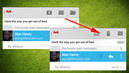 If you've updated to the new Gmail app for Android, you'll see there's a lot to love about it. One little quirk however is that the delete button is gone from the toolbar, leaving you only with options to archive, "mark as unread," and "move to" a folder. Here's how to get the delete button back.
As it stands, you have to press the menu button on your phone to bring up additional options, and "Delete" is right at the top of that menu. That's fine, but here's how to get the trash can back on your toolbar:
That's all there is to it. Then end result is the image you see on the right above. The "move to" folder icon has been bumped off, and the trash can is back. One important thing to note—the new version of the app lets you swipe a message to archive or delete it from your inbox. If you select "Show archive & delete," swiping will archive messages (this is the default behavior, so you're not missing anything). If you want swiping to delete messages, you'll have to go back and choose "Show delete only." Granted, most of us probably just archive everything in Gmail anyway—with so much space, there's little need to delete. However, if you get as much mail as I do, sometimes you just want to trash something and save the space. via Lifehacker 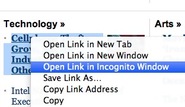 I'm not a New York Times subscriber but I do occasionally want to read an article on their website. They do let you read ten articles a month before the paywall descends and blocks you from further reading without a subscription. Until recently, it was mere child's play to get around the security with a few clever javascript hacks (like NY Clean) that were easy to find and implement by doing a quick Google search....but you may have noticed recently that these hacks are no longer working. However, there's still a sneaky and not too time consuming way to get around the paywall.
My solution is to open an "Incognito Window" in Google Chrome or a "Private Window" in Firefox. Since the New York Times paywall is cookie based, these two methods work because they block cookies in your browser and give you full access to the site. A super easy way to access an article of your choice with this method is to right click on the link and then choose "Open Link in Incognito Window" in Google Chrome. In Firefox, just right click on any link and choose "Open Link In New Private Window". From the new window you can now search and read the site to your heart's content. If you're feeling guilty, it may help to click on an ad on the site from time to time...or just give in and plunk down the money for a subscription. Times are tough...but the New York Times is a good outfit and we want them to stay in business.  I've received a few calls in the past month from clients running Windows XP. In my opinion, XP is a great operating system and there's no need to switch from it or upgrade your computer if it's still running efficiently - it still does a great job. In about a year from now, Microsoft intends to stop security patches and updates for XP. At that point, bad guys writing new viruses for Windows will probably be more likely to go after Windows 7 or 8 (or the latest version by then).
These days, Microsoft has been so good at keeping up with the security fixes for Windows that virus authors have been finding and exploiting security holes in third party applications that run on your machine. There has been a lot of recent exploits that target software like Java, Flash, and Adobe's Acrobat Reader (not Windows!). My advice is to stay with Windows XP if it works for you. If you're nervous that Microsoft is abandoning it then you can still use it safely for at least another year....and then you can decide whether or not you need to upgrade. More than likely, you'll end up dumping XP when you need a new computer. |

Tech BlogThis blog features important news, computer tips, and my own spin on the culture of technology.
Archives
August 2016
|